 Data River
Converting Bank Statements for BAS and Tax Time: 3 Methods Compared

By Data River

Quick answer: There are three ways to get a bank statement out of PDF and into a usable CSV: check if your bank offers a direct CSV/Excel export (fastest, when available), manually type the transactions into a spreadsheet (slow but works for any statement), or use an automated PDF-to-CSV conversion tool (fastest option when your bank doesn't offer export, or when you're converting statements in bulk).
If you've ever tried to reconcile a BAS, prep a tax return, or import transactions into accounting software using a PDF bank statement, you've hit the same wall: a PDF is essentially a picture of your transactions, not usable data. You can't filter it, sort it, or import it directly into Xero, MYOB, or QuickBooks. It needs to become a CSV first. Here's how, covering all three realistic methods.
This conversion step is part of a larger process — see our full guide on reconstructing financial records for the ATO for how it fits into BAS reconciliation, audits, and more.
Why you need CSV, not PDF
CSV (comma-separated values) is a plain, structured spreadsheet format — every accounting platform, and Excel or Google Sheets, can read it natively. A PDF, by contrast, is a fixed layout designed for printing and reading, not for software to parse. That's the whole reason this conversion step exists: to turn something built to be read into something built to be used.

Method 1: Check if your bank offers a direct export
Before converting anything, check whether your bank will just give you a CSV directly — most major Australian banks let you export transaction history as CSV or Excel through online banking, for a chosen date range. This is the fastest method by far when it's available.
Where to look: usually under "Transactions," "Statements," or "Export" in online banking or your banking app. Look for format options beyond PDF — CSV, Excel (.xlsx), or OFX/QIF (accounting-specific formats).
The catch: direct export usually only covers recent history — often 12 to 24 months. For older periods, closed accounts, or statements a bank has already archived as PDF-only, you'll need one of the other two methods.

Method 2: Manual data entry
If direct export isn't available, the fallback is typing the transactions into a spreadsheet by hand — date, description, and amount for every line, formatted to match whatever you're importing into.
When this makes sense: a single short statement, or a one-off need where setting up a tool isn't worth it.
Where it breaks down: anything beyond a handful of pages. A few months of transactions across even one account adds up to hundreds of line items, and manual entry is slow and genuinely easy to get wrong — a mistyped amount or a skipped line can throw off an entire BAS or reconciliation without being obvious until much later.
Method 3: Automated PDF-to-CSV conversion
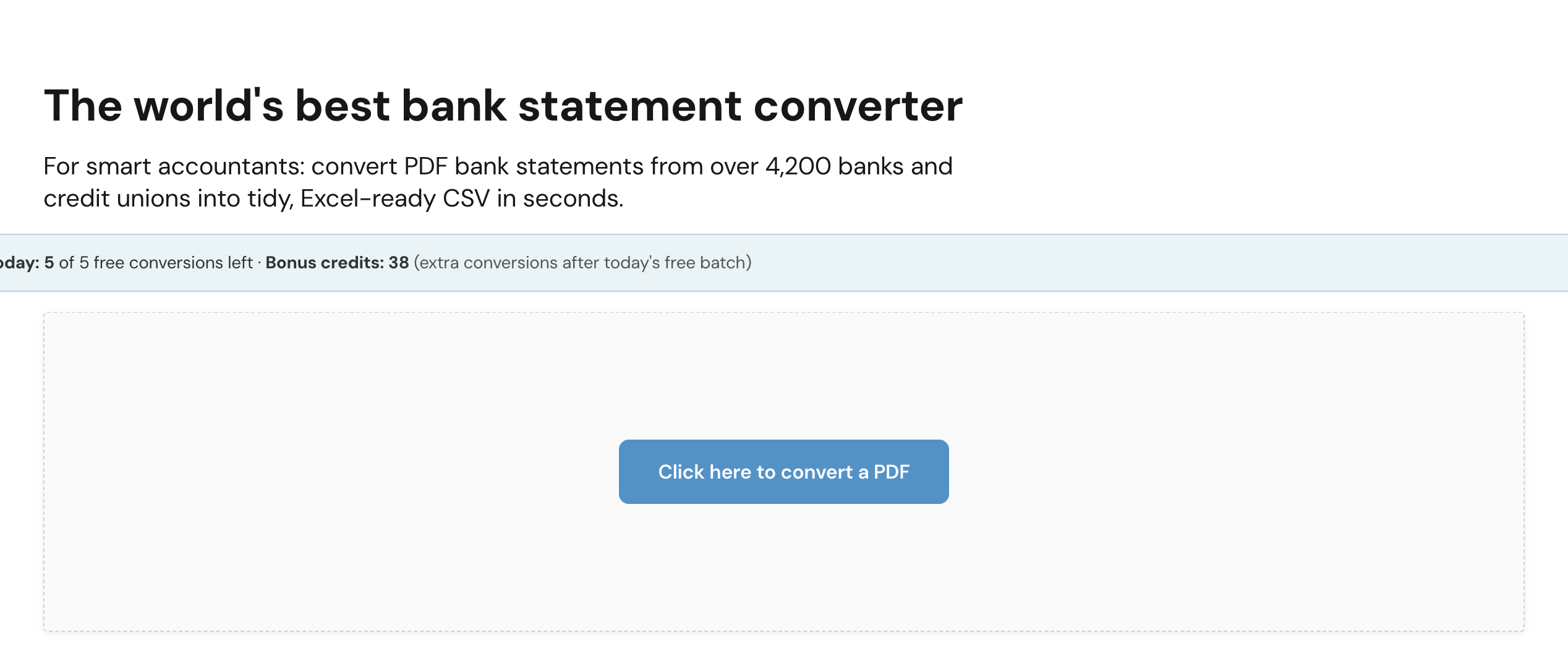
For statements your bank won't export directly — older periods, scanned copies, or several accounts and periods at once — an OCR-based conversion tool reads the PDF and outputs structured CSV data automatically. ("OCR," or optical character recognition, just means software that can read text and numbers off a scanned or fixed-layout document.)
This is where a tool like Data River fits in: upload the PDF statements, and it converts them into clean, structured transaction data in minutes rather than the hours manual entry takes — particularly useful when you're catching up several BAS periods or reconstructing records for the ATO at once, rather than converting a single recent statement.
When this makes the most sense:
- Your bank doesn't offer CSV export for the period you need
- You're converting statements from several banks or accounts at once
- You're working through a backlog — reconciling multiple periods, or reconstructing records the ATO has requested
- The statements are scanned or lower-quality, where manual entry would be even slower
Getting the CSV into your accounting software
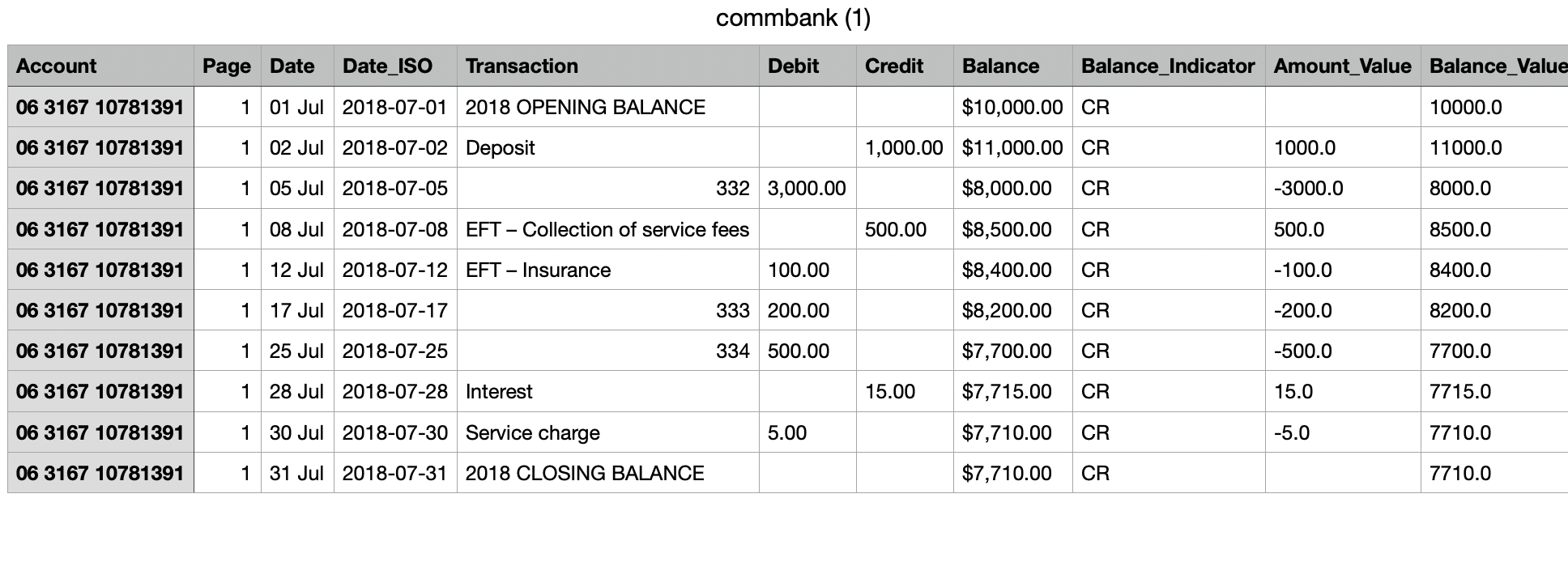
Once you have a CSV — however you got it — most accounting platforms expect specific column formatting to import cleanly:
- Date in a consistent format (check whether your software expects DD/MM/YYYY or MM/DD/YYYY)
- Description as a single column, not split across several
- Amount — some platforms want a single amount column with negative values for debits; others want separate debit and credit columns
Check your platform's import template before converting — matching the expected format the first time saves a re-export or a manual cleanup afterward. Xero, MYOB, and QuickBooks each publish their own CSV import templates if you're unsure of the exact columns required.
FAQ
Can I convert a PDF to CSV for free? Yes, if your bank offers direct CSV export — that's the free, built-in option. For statements outside that window, free conversion is possible but usually manual (typing it in yourself); automated conversion tools are typically a paid service given the processing involved.
Will a converted CSV work for older or scanned statements? It depends on the method. Bank-exported CSVs only cover what your bank still has available for direct export, usually recent history. OCR-based conversion tools can generally handle older or scanned PDFs, as long as the text is legible.
Does the CSV format matter for BAS reconciliation specifically? Not for the reconciliation itself — what matters is that the data is accurate and complete for the period. Formatting matters more when importing into accounting software, where the platform expects specific columns. See our BAS reconciliation guide for the full label-by-label process.
What's the fastest way to convert several months or years of statements at once? Manual entry doesn't scale well beyond a handful of pages — for bulk conversion (multiple periods, multiple accounts, or a backlog for an ATO request), an automated conversion tool is significantly faster than typing everything by hand.
Converting PDF bank statements into usable data is the slowest step in most reconciliation or record-reconstruction work. Data River automates that conversion — turning PDF statements into clean, structured CSV data, ready to reconcile or import.

About Data River
Data River converts your bank statements into Excel-friendly sheets — no more manual re-typing of PDF statements into spreadsheets. Upload a statement and get clean, structured data ready for reconciliation, bookkeeping, or import into your accounting software.